How to Get Your Flipkart Review Link
Required when submitting a Flipkart reimbursement form
You'll need these two things
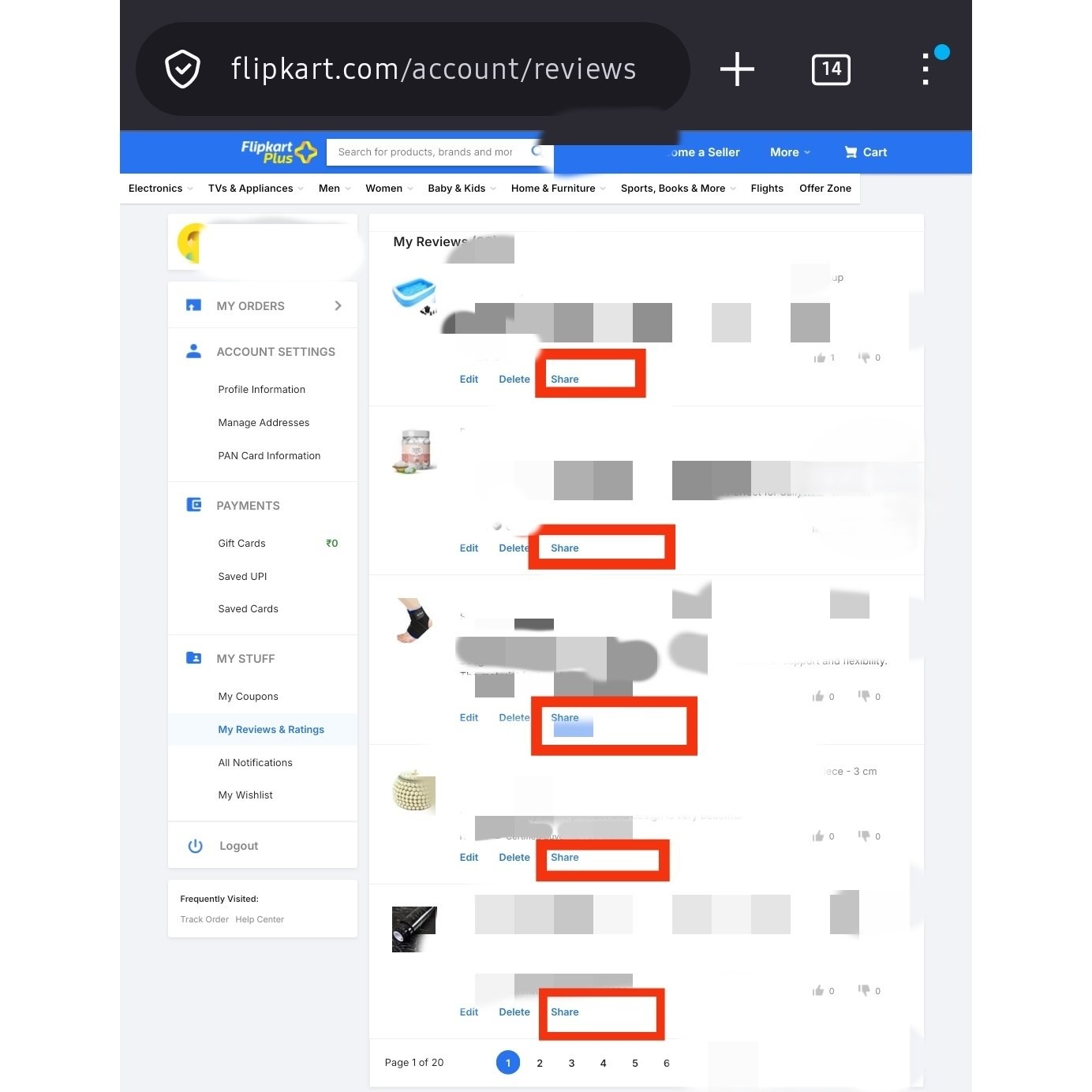
Flipkart hides the Share button on My Reviews unless the page is open in Firefox with Desktop site turned on. Chrome and the mobile view simply won't show it. Once Share appears, tap it, copy the link, and paste it back in the reimbursement form.
Don't have Firefox? Get it from Play Store or Download for desktop
Step-by-step
- 1 Install Mozilla Firefox from Play Store (or download from Google on desktop). Chrome and the Flipkart mobile app hide the Share button.
- 2
- 3 Tap the three-dot menu at the upper right of Firefox and tick Desktop site.
- 4 Find your review for the product you submitted the reimbursement for.
- 5 Tap Share below the review (see screenshot). Copy the link.
- 6 Come back to the reimbursement form and paste the link in the Review Link field.
Where the Share button is
Common problems
Q. I don't see the Share button.
A. You're probably on Chrome or in mobile view. Open the page in Firefox and switch to Desktop site.
Q. Page shows an error.
A. Flipkart sometimes errors on Chrome's mobile view. Use Firefox - it works.
Q. I deleted my review by accident.
A. Re-post the review on the product page; it'll show up on My Reviews again.